
Google Calendar AI features have quietly turned a grid of boxes into something closer to an assistant. Ask it a question, and it answers. Ask it to add an event, and it does. The catch is that most of what gets written about them online is either outdated or overstates what they can actually do on their own.
Here is what Google Calendar AI features actually do in 2026, how to turn them on, and where they still fall short of a dedicated scheduling tool.
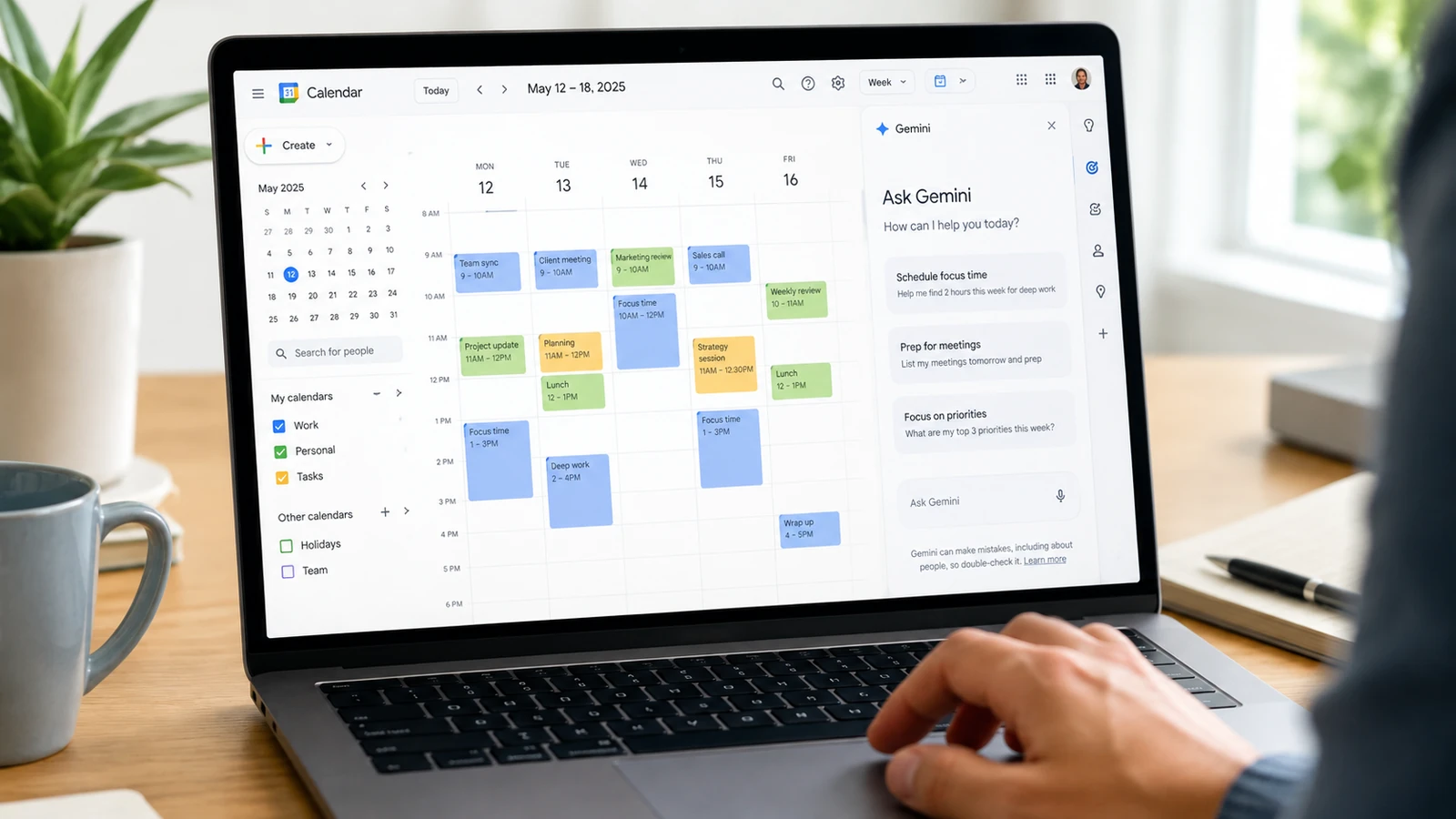
Table of Contents
The Ask Gemini side panel
The main way Gemini shows up inside Google Calendar is a side panel you open by clicking the “Ask Gemini” icon in the top right corner of the calendar view. It works conversationally: you type a question or pick a suggested prompt, and it answers using your actual calendar data.
Typical things people ask it include “How many meetings do I have on Monday,” “When is my next meeting with Sam,” or “What’s on my calendar this week.” It reads straight from your events, so the answers reflect what is actually scheduled rather than a guess.
Creating events with natural language
Instead of clicking through the new event form, you can describe what you want in plain language and let Gemini fill in the details. A prompt like “add a weekly workout every Monday, Wednesday, and Friday at 6 AM” creates a recurring event without you touching the recurrence settings. The panel also suggests quick actions, like adding a lunch event, based on your patterns.
This is closer to the natural language input you would find in a tool like Fantastical than a full scheduling assistant. It saves clicks, but it does not decide anything for you.
Scheduling meetings with colleagues
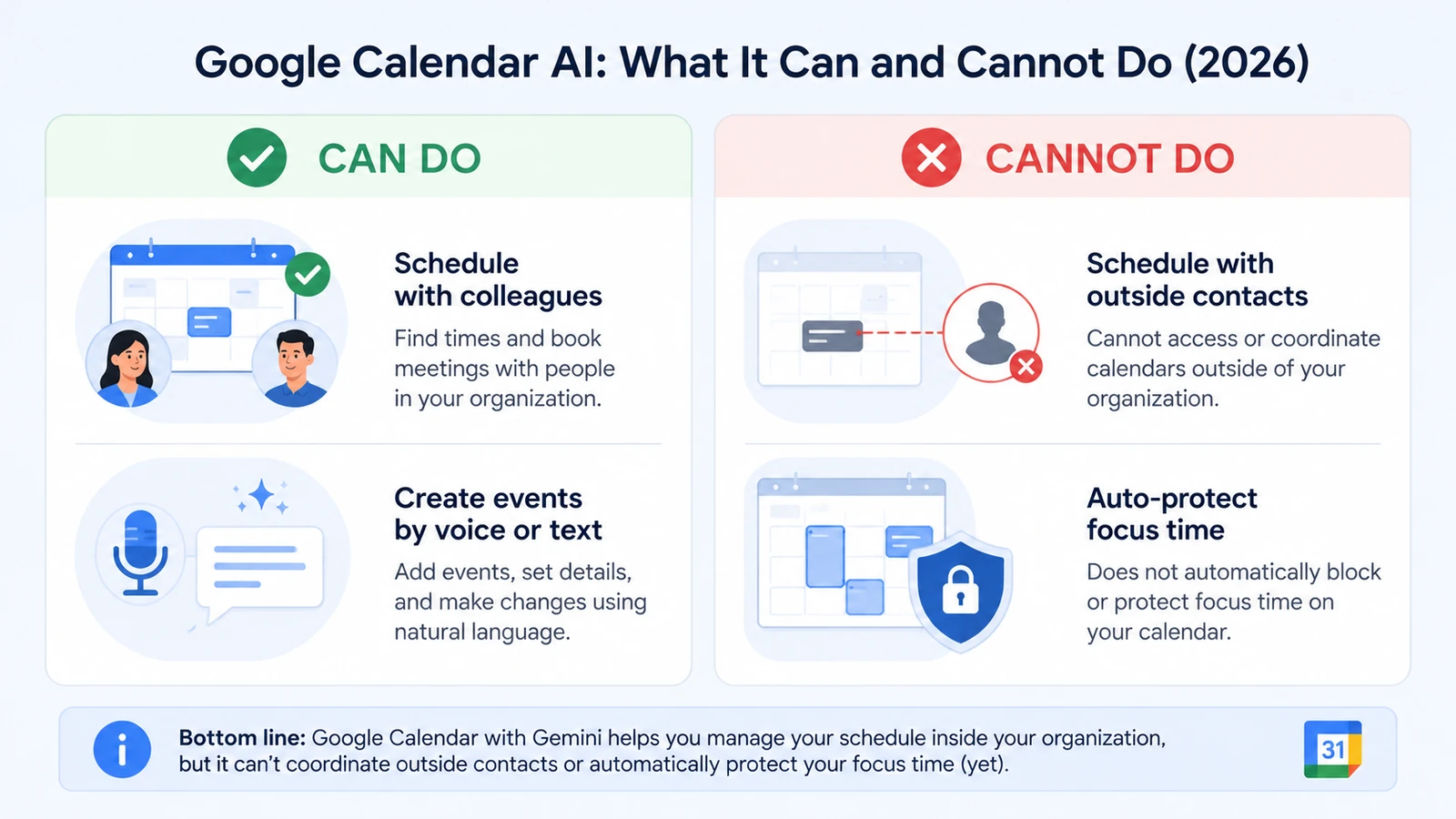
Where Gemini gets more useful is checking availability. If you ask it to find a time for a meeting with a colleague, it looks at their calendar, assuming you are both in the same Google Workspace domain, and proposes slots that actually work for both of you. This saves the usual back and forth of proposing a time, getting a no, and proposing again.
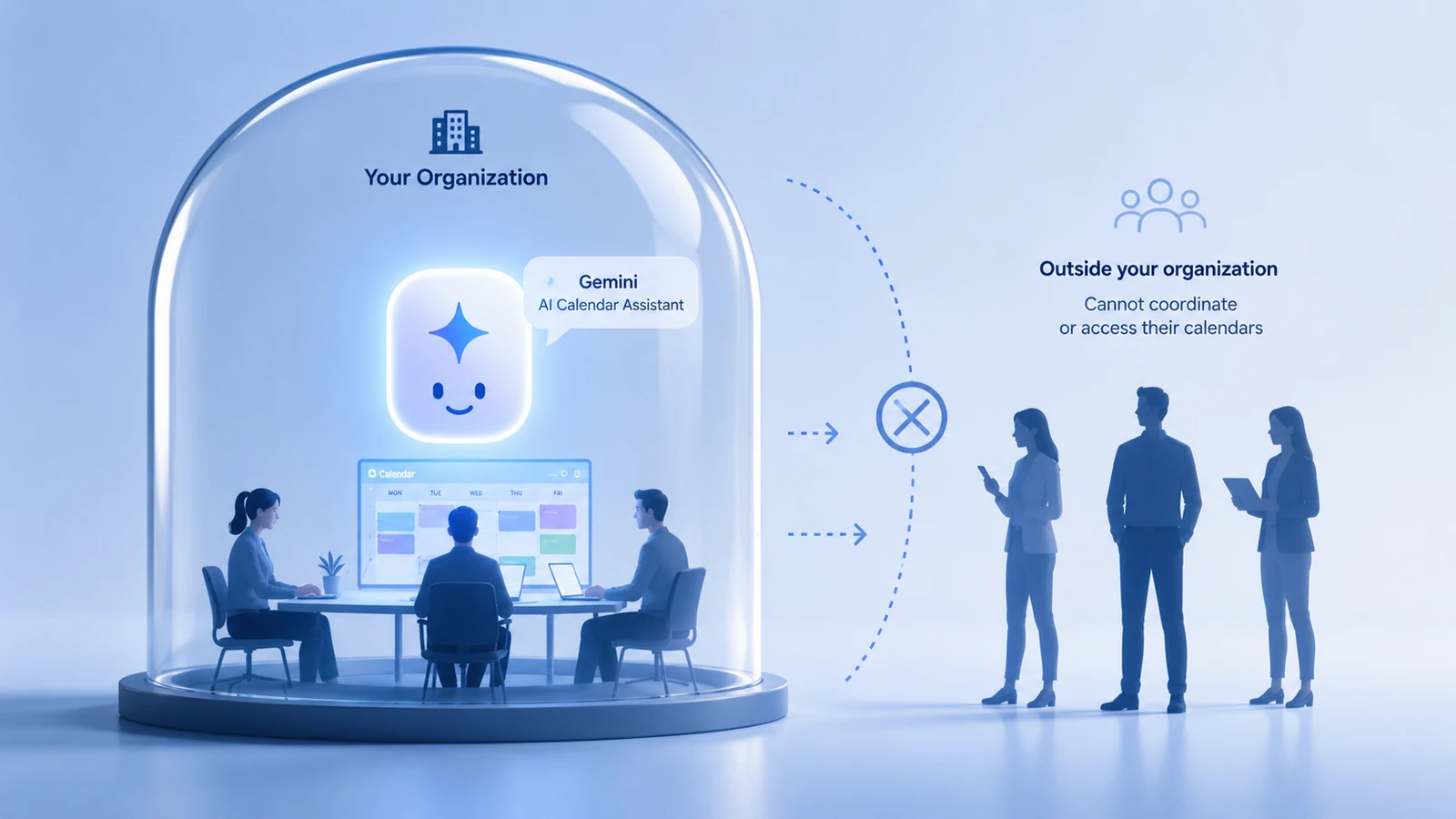
The catch is right there in that last sentence: it only works within your organization. It cannot see a client’s calendar, a candidate’s calendar, or anyone outside your Workspace domain, so it cannot propose or negotiate a time with them directly.
Help me schedule in Gmail
Google also rolled out a related feature inside Gmail called “Help me schedule.” It watches for scheduling language while you are drafting an email, things like “let’s find a time to talk,” and suggests open slots based on your calendar. The recipient can pick a time directly from the email, and Gmail creates the calendar invite automatically once they do. Independent testing of these Google Calendar AI features confirms it works reliably for simple one-on-one requests.
Right now this only handles one-on-one meetings. If you need to coordinate three or four people, you are back to a dedicated scheduling tool or a manual poll.
What Google Calendar AI features cannot do yet
It is worth being direct about where Google Calendar AI features fall short, since most coverage of this glosses over the gaps. A closer look at Gemini’s meeting scheduling limits confirms the pattern below.
- It cannot act on its own. Gemini in Calendar only responds when you ask it something. It does not watch your inbox and book a meeting the moment a client asks for one, the way a dedicated AI time blocking tool would.
- It cannot coordinate with people outside Google. Anyone using Outlook, or anyone outside your Workspace domain entirely, is invisible to it.
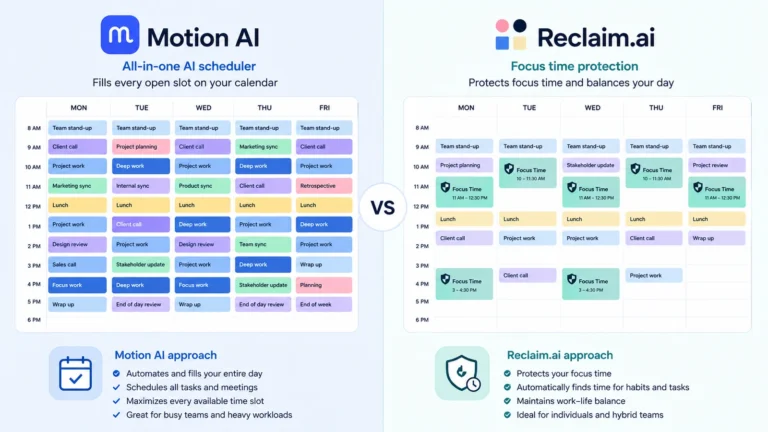
- It cannot protect focus time automatically. There is no equivalent yet to the auto-defended deep work blocks you get from Reclaim.ai or Motion.
- It is mostly limited to paid accounts. These features are rolling out to Google Workspace business and education accounts, along with Google AI Pro and AI Ultra subscribers, not to every free personal Gmail account.
Do you still need a dedicated AI calendar tool
If your calendar is mostly internal meetings and quick lookups, Google Calendar AI features cover a surprising amount of that for free (or already included in a Workspace subscription). If you manage a heavy load of external meetings, need your focus time actively protected, or want a tool that reschedules things automatically when your day changes, a dedicated option is still worth it. Here is roughly where each approach stands.
| Capability | Gemini in Google Calendar | Dedicated tool (Motion, Reclaim.ai) |
|---|---|---|
| Cost | Included with Workspace or AI Pro/Ultra | Separate subscription, often $10-50/month |
| Schedules with people outside your domain | No | Yes |
| Protects focus time automatically | No | Yes |
| Acts without you asking | No | Yes, once configured |
| Natural language event creation | Yes | Varies by tool |
For a closer look at tools built specifically for that second column, see our guide to the best AI calendar tools for busy professionals.
How to turn on Gemini in Google Calendar
For most Workspace users, the “Ask Gemini” icon already appears in the top right of the calendar view with no setup required. If you do not see it, check that Gemini is enabled for your account under your Google Workspace admin settings, or confirm your personal plan includes Google AI Pro or AI Ultra. Free personal Gmail accounts without one of these plans currently do not have access to the panel.
Frequently asked questions
Is Gemini in Google Calendar free?
It depends on your account. Gemini’s calendar features are included with Google Workspace business and education plans, and with personal Google AI Pro or AI Ultra subscriptions. Free personal Gmail accounts without one of these plans do not currently have access.
Can Gemini schedule a meeting with someone outside my company?
No. Gemini can only see calendars inside your own Google Workspace domain, so it cannot check availability or propose times for clients, candidates, or anyone on a different domain or a different email provider like Outlook.
Does Gemini automatically protect my focus time?
Not on its own. Google Calendar lets you block time manually, but Gemini does not defend that time the way a dedicated tool like Reclaim.ai does by automatically pushing back meeting requests during protected blocks.
What is the difference between Gemini in Calendar and Help me schedule in Gmail?
The Ask Gemini panel lives inside Google Calendar and answers questions or creates events on request. Help me schedule lives inside Gmail and watches your email drafts for scheduling language, then suggests times the recipient can pick directly from the message.