

Sunday night planning sessions that stretch into an hour, sticky notes piling up on your desk, a to-do list that never quite matches your calendar. If weekly planning feels like a chore, you are not doing it wrong. You are just doing it the slow way.
AI can help you plan your week in 10 minutes instead of an hour. Not by doing your thinking for you, but by handling the parts that eat up time: sorting a messy list of tasks, suggesting when to do what, and building in the buffers you always forget. Here is a practical method you can use this week, plus the mistakes worth avoiding.
Table of Contents
Why traditional weekly planning takes so long
Most weekly planning drags on for one simple reason: you are doing three jobs at once. You are trying to remember everything you need to do, decide what actually matters, and figure out when you have time for it. Each step involves its own friction: switching between a notes app, a task manager, and a calendar, second-guessing priorities, and manually dragging blocks around until the week looks reasonable.
AI does not remove these three jobs. It just handles two of them for you, sorting and scheduling, so you can focus on the one that actually needs a human: deciding what matters.

How to plan your week in 10 minutes: the 5-step method
This method to plan your week in 10 minutes works with almost any AI assistant, from a general chatbot to a dedicated planning app. The idea stays the same either way.
Step 1: brain dump everything (2 minutes)
Open a chat with your AI assistant and type out everything on your mind: tasks, errands, half-finished projects, that email you keep forgetting to send. Do not organize it, do not prioritize it, just get it out. This step works because it removes the mental load of trying to plan and remember at the same time.
Step 2: let AI sort and prioritize (2 minutes)
Ask your AI to group the list by project or context, then flag what is urgent versus what can wait. A useful prompt is asking it to point out anything that takes less than 10 minutes. Those are the tasks you can slot into small gaps during the week instead of giving them their own block.

Step 3: turn tasks into time blocks (3 minutes)
Share your fixed commitments, meetings, school pickups, gym sessions, and ask the AI to suggest time blocks for everything else around them. If you know your energy dips in the early afternoon, say so. Tools connected directly to your calendar can do this automatically and adjust the blocks if a meeting runs long. Otherwise, copy the suggested schedule into Google Calendar or whichever calendar you use.

Step 4: add buffers and reminders (1 minute)
Ask the AI to insert short buffer blocks, 15 to 30 minutes, between demanding tasks. Buffers are the first thing people skip and the first thing that makes a schedule fall apart by Tuesday. If you tend to underestimate how long things take, ask for double the buffer you think you need.
Step 5: run a 2-minute Friday review
Before logging off for the week, compare what you planned against what you actually did. Ask your AI to carry forward anything unfinished and to note any pattern: tasks that always get pushed, meetings that always run over. This step is what makes the following week faster to plan, not slower.

Which AI tools can actually do this
You do not need a dedicated app to plan your week in 10 minutes. A general AI assistant paired with your existing calendar works fine. But if you want the scheduling and adjustments handled automatically, a few tools are built specifically for this.
| Tool | Best For | Starting Price |
|---|---|---|
| Saner.AI | Brain dump and quick sorting | Free, paid from $8/month |
| Motion | Fully automatic scheduling | From $19/seat/month |
| Reclaim AI | Protecting focus time | Free, paid from $12/seat/month |
| Sunsama | Guided daily planning ritual | From $17/month (annual) |
| Akiflow | Keyboard-first time blocking | From $19/month (annual) |
| Notion Calendar | Notion users, one workspace | From $12/member/month |
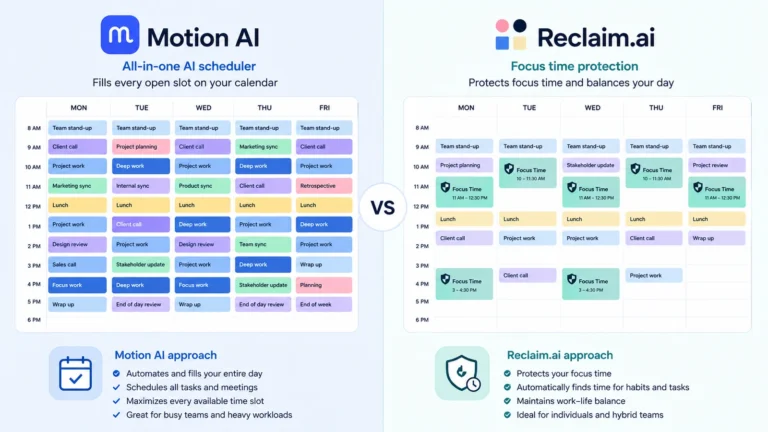
Motion builds your schedule for you and reshuffles it the moment something changes. Reclaim AI focuses on protecting blocks of deep work and syncing across multiple calendars. Sunsama guides you through a short planning ritual each morning instead of once a week. We compared Motion and Reclaim AI head-to-head in our Motion AI vs Reclaim.ai comparison, if you want to see which one fits your workflow. You can also try the method for free with a general assistant like ChatGPT paired with your existing calendar.
If you already live inside Google Calendar or Outlook, you may not need a separate tool at all. Google has been rolling out Gemini directly into Calendar, letting you describe your week in plain language and get suggested time blocks without leaving the app. Microsoft is doing something similar with Copilot in Outlook, which can summarize your schedule and draft new events from a simple prompt. It is worth trying these built-in options first if your calendar already supports them, before adding another subscription to the mix.
Making the method work for your own routine
The 5-step method to plan your week in 10 minutes is a starting point, not a rigid formula. A few adjustments make it fit real life better.
- Use voice-to-text for the brain dump if you have a lot on your mind. It is faster and tends to capture more than typing.
- Ask for a single most important task each day instead of a long list. One clear priority beats five vague ones.
- Schedule demanding work during your natural focus hours, whenever those are for you, and save low-energy tasks for the dips.
- Mention recurring problems during your Friday review so the AI adjusts future suggestions instead of repeating the same plan.
Common mistakes to avoid when planning with AI
- Filling every single minute. A calendar with zero white space breaks the first time something runs long, and something always does.
- Trusting the first suggestion blindly. AI does not know you are exhausted unless you tell it.
- Skipping the Friday review. This is the step that turns a one-off planning session into a system that improves over time.
- Using a tool with more features than you need. If your week does not involve multiple calendars or team scheduling, a general AI assistant is often enough.

Give this method one real try this week. Even a messy first attempt beats another Sunday spent staring at a blank calendar. Once you know how to plan your week in 10 minutes, the hardest part is just starting. Explore our AI Productivity section for more ways to get AI working for your schedule.
Can AI really plan my whole week in 10 minutes?
For most weeks, yes. The method to plan your week in 10 minutes covers the brain dump, prioritization, and time blocking. Weeks with a lot of moving parts, like travel or a big project deadline, may need a few extra minutes to get right.
Do I need a paid AI tool to plan my week?
No. A free AI chatbot combined with your existing calendar covers the full method described here. Paid planning tools mainly save time by automating the scheduling and syncing steps instead of you copying blocks over manually.
What is the best AI tool for weekly planning?
It depends on what slows you down. If you want automatic scheduling, Motion or Reclaim AI are strong options. If you want a guided daily ritual, Sunsama tends to work well. There is no single best tool, just the one that matches how you actually plan.
How is planning with AI different from just using a calendar?
A calendar shows you what is already scheduled. AI planning helps you decide what should be scheduled in the first place, by sorting your tasks, suggesting priorities, and building the blocks for you instead of you doing it manually.