

Let’s be honest: most to-do lists are where tasks go to die. We write them down with the best intentions, but by mid-week, the list becomes a cluttered “graveyard” of unchecked boxes and vaguely worded reminders.

But what if your Notion AI To-Do List could think for you?
This is where building a Notion AI To-Do List changes the game. Instead of a passive sheet of paper, you get an active assistant that can prioritize your day, break down complex projects, and even estimate how long a task will take automatically.
In this tutorial, we will move beyond standard checkboxes. We are going to build a system that leverages the latest AI Autofill features to handle the heavy lifting for you.
Note: This guide focuses on a specific workflow. If you are brand new to the platform, you might want to start with our comprehensive guide on how to use Notion AI first to grasp the basics.
Step 1: The Foundation (Database Setup)
Before we can inject the “smart” elements, we need a solid structure. AI needs data to analyze, so setting up your database correctly is crucial.
Don’t worry, we will keep it lean. You don’t need a complex formula to start.
- Create a Database: Type
/databasein Notion and select Table View. - Add Essential Properties:
- Name: The task title.
- Status: A status property (To Do, In Progress, Done).
- Due Date: A date property.
- The “Secret Sauce” Column:
Add a Text Property and name it “Context” or “Brain Dump.”
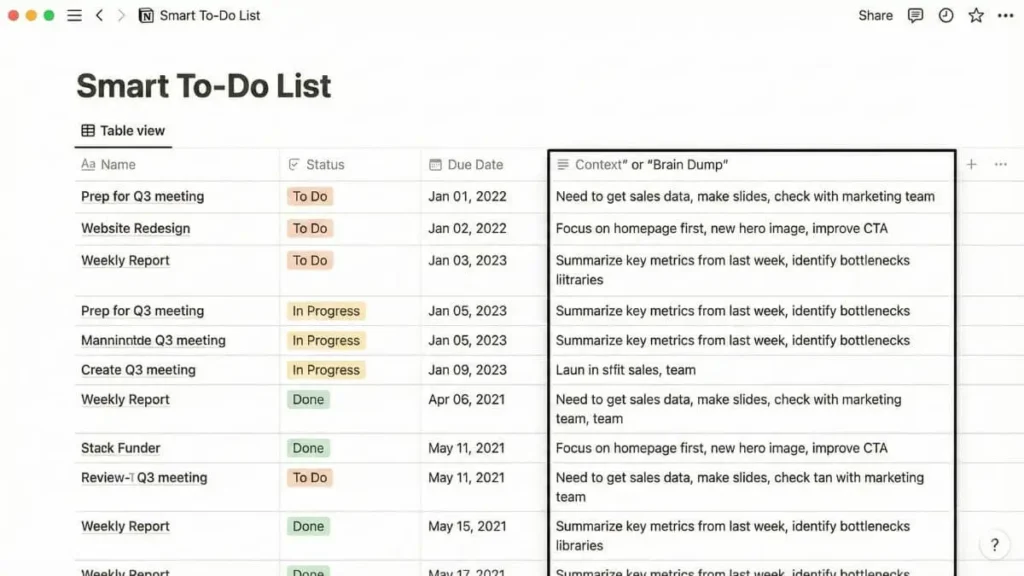
Why this extra column? Most people skip this, but it is vital for a Notion AI To-Do List. This is where you will roughly jot down messy thoughts like “Need to prep for the Q3 meeting, get the sales data, and make slides.”
In the next section, we will configure the AI to read this messy column and transform it into structured, prioritized actions automatically.
Step 2: Making a smart Notion AI To-do list with AI Properties
This is the turning point where your database shifts from a simple spreadsheet to a robust AI task management system.
Instead of manually typing out every detail, we are going to use Notion’s AI Autofill feature. This property type “reads” the information in your other columns (like the ‘Context’ or ‘Name’) and generates new content automatically whenever you add a task.
Here are the two “Smart Columns” you need to add to your database.
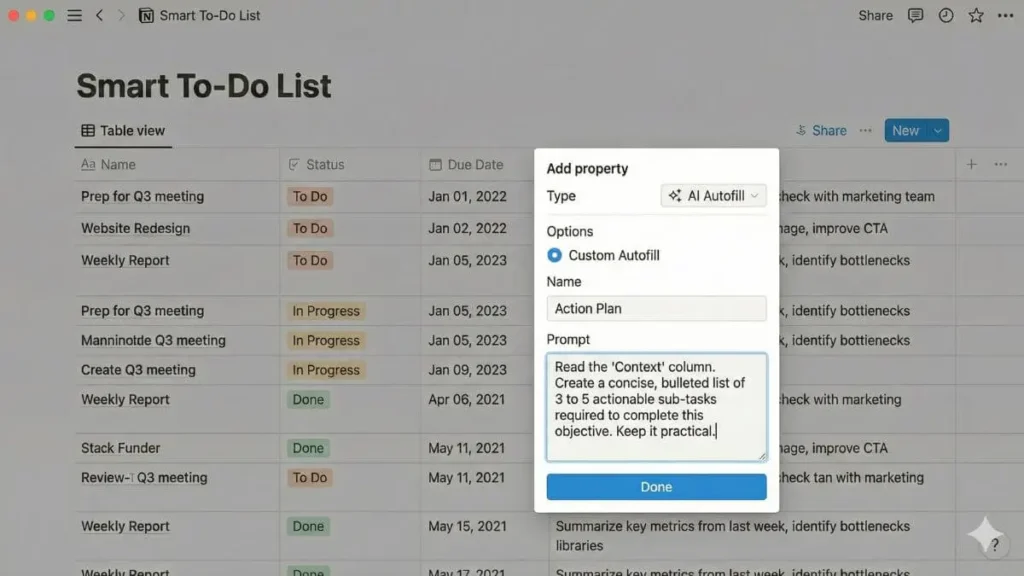
1. The “Action Plan” Generator
It is easy to feel overwhelmed by a vague task like “Launch Website.” Let’s make the AI break it down for us.
- Click the + sign to add a new property.
- Select AI Autofill > Custom Autofill.
- Name this column “Action Plan”.
- In the prompt box, paste this specific instruction:
“Read the ‘Context’ column. Create a concise, bulleted list of 3 to 5 actionable sub-tasks required to complete this objective. Keep it practical.”
Now, when you type “Launch Website” in the Name and “Need to check SEO and publish blog” in the Context, this column will automatically generate a checklist for you.
2. The Smart Prioritizer
Next, we will solve the issue of decision fatigue. Instead of guessing what is urgent, we will prioritize tasks with AI based on logic.
- Add another AI Autofill (Custom) property.
- Name it “AI Priority”.
- Use this prompt to force the AI to make a decision:
“Analyze the ‘Due Date’ and the complexity described in the ‘Context’ column. Assign a priority level: High, Medium, or Low. If the due date is within 2 days, strictly mark it as High.”
Why this works: You get an objective second opinion on your workload immediately. This setup saves you the mental energy usually wasted on organizing, allowing you to focus entirely on execution.
Step 3: Daily Workflow Notion AI (Ask AI & Q&A)
Building the database is only half the battle. To truly maintain a smart to-do list, you need to interact with it dynamically. You shouldn’t have to dig through rows to find information; you should be able to just ask.
Here is how to use the Notion AI Q&A features to speed up your daily routine.
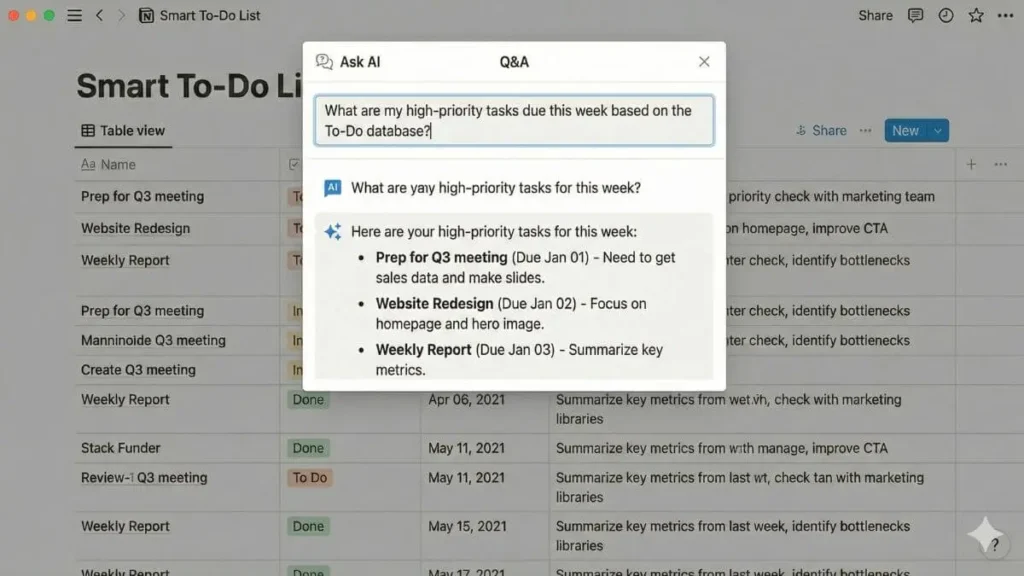
The “Morning Brief” Method
Instead of manually scanning dates, use the AI shortcut (Shift+Cmd+J on Mac, Shift+Ctrl+J on Windows, or Spacebar) anywhere on your page and ask:
“What are my high-priority tasks due this week based on the To-Do database?”
The AI will scan your newly created list and generate a summary paragraph. This turns your rigid database into a conversational assistant.
Cleaning Up Messy Notes
We all have that one page full of chaotic meeting notes. Don’t manually copy-paste tasks into your database.
- Highlight the text of your meeting notes.
- Click “Ask AI”.
- Select “Find Action Items”.
Notion will extract the tasks for you. You can then drag and drop these blocks directly into your “Smart To-Do List” database, triggering the Autofill properties we set up in Step 2.
Pro Tip: Connecting External Tools (2025 Update)
If you use the new Notion AI Connectors (features integrating Google Drive or Slack), you can even ask: “Did I receive any urgent tasks in Slack regarding the Website Launch project?” and add them to your list instantly.
Frequently Asked Questions (FAQ)
Is Notion AI included in the free plan?
No, full Notion AI access now requires the Business plan ($20/member/month). Free and Plus plans only get a limited trial. A separate pay-as-you-go credit system also exists for Custom Agents, at $10 per 1,000 credits.
Can Notion AI create recurring tasks automatically?
Not exactly, though it’s getting closer. AI Autofill properties still don’t work as a true time-based automation engine, so they can’t do something like “Create this task every Monday” on their own. For pure recurring tasks, Notion’s native Database Automations remain the most reliable option. Since Notion launched Custom Agents in February 2026, though, you can also set up agents that run on a schedule or trigger, which covers some of the same ground.
How do I enable AI autofill in Notion?
You must have the Notion AI add-on active. Then, in any database, click the + to add a column and look for the “AI Autofill” section in the property type menu. According to Notion’s official documentation, Notion AI can analyze page content, generate summaries, and automate task structuring directly inside databases.
Conclusion
You now have more than just a list; you have a true Notion AI To-Do List powered by automation and intelligence. By combining a simple database structure with Notion AI’s autofill capabilities, you remove the friction of prioritizing tasks, breaking down projects, and staying focused on what truly matters.
The goal isn’t to work faster. It’s to work with better clarity, fewer decisions, and a system that adapts to you instead of the other way around.
Ready to go further?
Now that you’ve mastered smart task management, explore our complete Notion AI guide to unlock advanced workflows for writing and content creation, or discover our curated selection of Best AI Tools for 2025 to optimize your entire productivity stack.



[…] Motion AI fits a freelancer or small business owner who is juggling client projects, deadlines, and meetings at once, and who wants one tool to manage all three instead of switching between a calendar app and a separate to-do list. […]