
Introduction

Let’s be honest. The hardest part of project management isn’t doing the work. It is managing the chaos around the work. In 2026, manually updating status columns, summarizing messy meeting notes, and searching for lost documents is no longer just annoying. It is a waste of time.
This is where Notion AI for project management changes the game.
Most people think Notion AI is just a chatbot that writes generic text. They are missing the point. When used correctly, it acts as an intelligent layer that connects your tasks, docs, and goals. It moves you from a static to a “self-updating” workspace.
In this guide, we are not just going to show you how to write a prompt. We will build a system that organizes itself, tracks its own risks, and helps you make better decisions faster.
Why choose Notion AI over traditional tools?
If you have used tools like Asana or Trello, you know they are rigid. You have to work the way the software wants you to work. Notion is different because it offers extreme flexibility.
With the latest updates, Notion AI acts as a connector. It doesn’t just generate text; it understands the context of your entire workspace.
The power of the Q&A engine
Imagine having a project manager who has read every single document in your company and can answer any question instantly. That is what the Q&A feature does. Instead of digging through folders, you simply ask: “What was the deadline we agreed on for the Q1 launch?” and it retrieves the answer.
However, Notion requires you to build your own structure. If you prefer a tool that is more rigid but “ready out of the box” for complex teams, you might want to check our detailed comparison: Notion AI vs Google NotebookLM.
But if you are ready to build a custom productivity machine, let’s dive into the setup.
Step 1: Intelligent planning & strategy
The biggest friction in project management is starting. You have a big goal, but breaking it down into actionable steps takes mental energy. In 2026, you shouldn’t be staring at a blank page.
Using AI to generate project roadmaps

Instead of manually creating every task, you can let Notion AI do the heavy lifting in seconds.
Brainstorming with the /ask Command
Open a new page and simply press the space bar to call up Notion AI. You don’t need to be a prompt engineer; you just need to be specific.
Try this command:
“Act as a senior project manager. Generate project roadmap for launching a new marketing website in Q1. Include milestones, dependencies, and a timeline.”
Notion will instantly output a structured list. You can then click “Turn into database” to convert that text list into a functional Board or Timeline view instantly.
Breaking down complex goals
Sometimes you have a messy page full of brainstorming notes. You can highlight all that text and ask AI to “Extract action items and organize by priority.” It turns chaos into a clear to-do list without you typing a single task.
Short on time?
If you don’t want to build your system from scratch, you can skip the setup. Download our curated list of the Best Notion AI Templates for Productivity to get started immediately.
Step 2: Building the automated database
This is where the magic happens. Most project trackers are “dead” lists, they only change when you manually update them. We are going to build a database that updates itself using Notion AI autofill.
Mastering Notion AI autofill properties
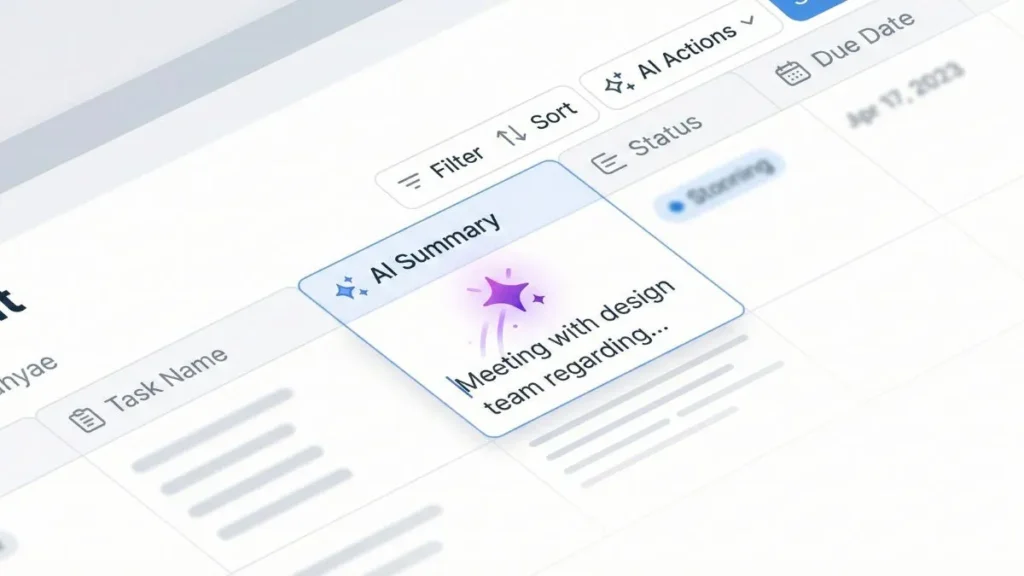
In a standard Notion database, you have columns for “Status,” “Date,” or “Owner.” With AI, you can add columns that read the content of the page and fill themselves.
Here is how to automate tasks in Notion effectively:
1. The “AI summary” property
Stop writing manual status updates.
- How to do it: Click the
+to add a property > SelectAI Summary. - The Result: Notion will look at all the meeting notes, tasks, and comments inside that project page and write a 2-sentence summary in your main view. You can see exactly where every project stands without opening a single page.
2. AI-Driven risk assessment
You can train Notion to spot problems before you do.
- How to do it: Add a
Custom AI Autofillproperty. - The Prompt: Write a prompt like: “Analyze the content of this page. Are there any mentioned delays or blockers? If yes, tag this as ‘High Risk’. If not, tag ‘On Track’.”
- The Benefit: Your database now automatically flags risky projects for you.
3. Automatic action item extraction
Never lose a task in a meeting note again. Create a text property powered by Notion AI autofill that extracts “Next Steps” from your messy notes and lists them right in your dashboard.
This turns your project board into a living, breathing assistant that processes information for you.
Want to apply this same autofill approach to a simple personal to-do list instead of a full project board? See our step-by-step guide on building a Notion AI to-do list.
Step 3: Managing the daily workflow
Now that your system is built, how do you use it every day without getting overwhelmed? In 2026, you shouldn’t be spending time organizing files. You should be spending time doing the work.
Your new personal assistant: Notion AI Q&A
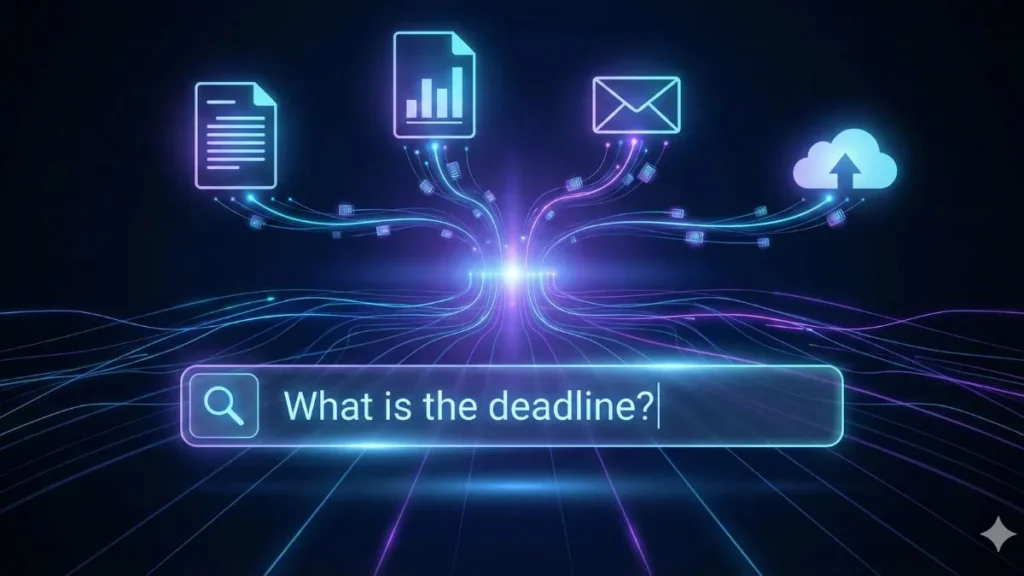
The biggest productivity killer is searching for information. “Where is that PDF?” “What did we decide about the budget?”
With the new Notion AI Q&A feature, you stop searching and start asking.
- How it works: Look for the sparkle icon in the bottom right corner, use the sidebar search bar (“Ask AI anything”), or press Cmd/Ctrl+Shift+K anywhere on the page.
- What to ask: Try asking: “What are my high-priority tasks for this week?” or “Summarize the feedback from the last design meeting.”
- The Magic: It searches across all your pages, databases, and even connected apps (like Slack or Google Drive) to give you a direct answer with citations.
Cleaning up meeting notes instantly
We have all been there: typing frantically during a meeting and ending up with a mess of text.
Instead of rewriting it manually, highlight the text and select “Improve writing” or “Summarize”. Notion will instantly format your rough notes into clean bullet points with clear headers.
For a broader look at using AI to capture and organize notes beyond Notion, see our complete guide on how to use AI to take better notes.
Prefer a “No-Database” approach?
Notion is powerful, but it requires structure. If you are the type of person who prefers to dump notes without worrying about folders or databases, you might find Notion too rigid.
In that case, you should explore a “self-organizing” alternative. Read our review of Smart Notes with Mem AI to see if that flow suits your brain better.
Case study: Launching a marketing campaign with Notion AI
Theory is good, but let’s look at a real-world scenario. Here is how a small marketing team used Notion AI to cut their planning time by 50% for a “Black Friday” campaign.
Phase 1: The brainstorming dump
The team started with a messy meeting notes page full of random ideas: “Use TikTok influencers,” “Email sequence needs 3 parts,” “Update landing page.”
The AI Move: They highlighted the entire messy page and asked Notion AI: “Turn these notes into a structured project brief with clear objectives and a list of deliverables.”
In 10 seconds, they had a clean document to share with stakeholders.
Phase 2: The timeline creation
Instead of manually creating cards in the board view, they used the prompt: “Create a timeline for these deliverables starting November 1st and ending November 29th.”
Notion AI generated the dates, and they simply converted the text into a Timeline View database.
Phase 3: The content production
For each email in the plan, they used Notion AI to draft the copy directly inside the task card. This kept the context (the task) and the work (the email draft) in the exact same place, eliminating the need for Google Docs links.
5 Advanced prompts every project manager needs
Most people only use basic prompts like “Summarize this.” To get the most out of Notion AI in 2026, try these advanced commands to manage your team more effectively.
- The “Sentiment Analysis” Prompt:
“Analyze the feedback comments in this database. What is the overall sentiment (Positive/Negative)? Identify the top 3 recurring complaints.”
(Great for product managers reviewing user feedback). - The “Post-Mortem” Generator:
“Based on the completed tasks and overdue tags in this project, draft a post-mortem report highlighting what went wrong and what we achieved.” - The “Jargon Translator”:
“Rewrite this technical update for a non-technical stakeholder. Keep it under 200 words and focus on business value.” - The “Meeting Agenda” Builder:
“Read the open tasks assigned to [Name]. Generate a 1-on-1 meeting agenda to discuss their blockers and progress.” - The “Gap Analysis”:
“Compare this project plan against our Q1 goals document. Are there any missing deliverables we forgot to include?”
Notion AI vs. ChatGPT: Which is better for projects?
A common question we hear in 2026 is: “Why should I pay $10/month for Notion AI when I can copy-paste into ChatGPT for free?”
It is a fair question. However, for project management, context is everything. Here is the breakdown:

| Feature | Notion AI | ChatGPT / Claude |
|---|---|---|
| Context Awareness | ✅ Sees your entire workspace (docs, tasks, dates). | ❌ Only sees what you paste in the chat. |
| Privacy | ✅ Data stays in your workspace. | ⚠️ Data is often used for training (unless Enterprise). |
| Actionability | ✅ Can edit databases and properties directly. | ❌ Cannot touch your files; outputs text only. |
| Workflow Speed | ✅ Instant (Integrated in the UI). | ❌ Slow (Requires switching tabs + copy-pasting). |
The Verdict: Use ChatGPT for creative brainstorming. Use Notion AI for managing the actual work inside your system.
If you are comparing two full apps rather than a single AI feature, our breakdown of Taskade AI vs Notion AI for productivity covers seven key differences worth knowing.
3 Common mistakes to avoid
Implementing AI in your project workflow can backfire if you are not careful. Here are the top 3 traps new users fall into.
Mistake #1: Trusting the “Auto-Fill” blindly
AI hallucinates. If you ask it to “Extract next steps” from a meeting, it might invent a task that wasn’t discussed.
The Fix: Always treat AI output as a draft. Review the “AI Summary” column during your weekly review to ensure accuracy.
Mistake #2: Over-prompting
Don’t try to make Notion AI do everything. Asking it to “Write a full marketing strategy based on this one-line task” will result in generic fluff.
The Fix: Use AI to organize data you have already created, rather than asking it to invent strategy from scratch.
Mistake #3: Ignoring permissions
Remember that Notion AI can read any page you have access to. If you use the Q&A feature to ask “What are the salary expectations?”, it might pull data from a private HR doc if permissions aren’t set correctly.
The Fix: Audit your page permissions before rolling out AI to the whole team.
FAQs about Notion AI for project management
Before you commit to migrating your entire workflow, here are the answers to the most common questions we get.
Is Notion AI data secure for business?
This is the big concern. According to Notion’s official policy, your data is private. Notion AI does not use your customer data to train its public models. Your information stays within your workspace. However, always check with your company’s IT policy before putting sensitive legal or financial data into any AI tool.
Is it worth the extra $20/month?
Think about your hourly rate. If Notion AI saves you just one hour of summarizing notes or searching for files per month, it pays for itself. For most project managers, it saves closer to 2-3 hours per week.
Can AI replace a project manager?
No. AI is great at administrative tasks: updating statuses, fixing dates, and summarizing meetings. It is terrible at leadership, conflict resolution, and strategic decision-making. Use AI to handle the “busy work” so you can focus on leading your team.
Final Thoughts: From chaos to clarity
The goal of using Notion AI for project management isn’t just to be “modern.” It is to reclaim your time.
By setting up the system we covered, including automated roadmaps, self-updating databases, and instant Q&A, you stop being a “data janitor” and start being a strategist. You no longer work for your project management tool; the tool finally works for you.
Ready to optimize your workflow further?
Don’t stop here. Explore our complete hub on AI Productivity to discover other tools that can automate the rest of your workday in 2026.
What’s New in 2026? (Agents, Meeting Notes & More)
To keep this guide fully up-to-date, we must mention several game-changing features released recently that push productivity even further.
- Notion Mail (Beta): Instead of switching tabs, Notion now integrates your inbox. You can use AI to turn an email directly into a database task without leaving the app.
- Notion Agents: Unlike the standard AI that waits for your command, “Agents” can work in the background. You can set an agent to “Monitor this project status and alert me if a deadline is missed.” These are also called Custom Agents, and you can schedule them to run on their own, for example every Monday morning.
- AI Meeting Notes: Notion can now join or listen to your calls and turn them into structured notes on its own, with action items assigned to the right person automatically.
- Enterprise Search: On the Business plan, Notion AI Q&A can also search across the other apps your team already uses, like Slack and Google Drive, so you get one answer instead of digging through five tools.
- Research Mode: For bigger questions, Notion AI can work through multiple steps and sources on its own before giving you a longer, well-sourced report instead of a quick one-line answer.